

Imagine a tool that gives you real-time customer support whenever you need it. Chatbots are just that, becoming a valuable asset in many fields. They can automate talks and help users, leading to big growth in the digital world.
You might think making such a tool needs special skills. But the truth is more hopeful. Anyone can build a chatbot, from students to parents and teachers just starting out. This project is a fun way to get into coding.
The key is using powerful, easy-to-use libraries. With the ChatterBot library in Python, you can make a self-learning chatbot in no time. This guide will show you how. We’ll make the process clear and give you the tools to create your own chatbot assistant.
What is a Chatbot and Why Build One in Python?
A chatbot is a software that talks like a human. This guide will explain what they are, where you find them, and why Python is a great choice for making your first one. Knowing this is key before you start coding.
Defining a Chatbot
A chatbot is a computer program that talks like a human. It can talk through text or voice. It uses rules or AI to understand and reply to what you say.
“A chatbot is a computer program that simulates human conversation—often through text or voice—using predefined logic or artificial intelligence.”
Think of it as a virtual agent that follows a script or learns from data to communicate. Its main job is to understand what you need and give the best answer it can. This makes it a powerful tool for automation.
Common Uses and Applications
The real-world chatbot applications are vast and growing. They are no longer just novelties but essential tools in many industries. Their ability to provide instant, 24/7 interaction makes them incredibly valuable.
One of the most prominent uses is in customer service. As noted, “Chatbots can provide real-time customer support and are a valuable asset in many industries.” They handle frequent queries, book appointments, and track orders. This frees human agents for more complex issues.
Beyond support, chatbots have diverse roles:
- Education: Serving as tutoring aids or interactive learning tools.
- Entertainment: Powering characters in games or providing companionship.
- Healthcare: Providing preliminary symptom checks or therapy session reminders.
- E-commerce: Guiding users through product selection and checkout processes.
This versatility shows why learning to build them is a useful skill. The market for these conversational interfaces continues to expand rapidly.
Advantages of Using Python
When deciding which language to use, Python stands out, specially for beginners. Its design focuses on readability and simplicity. This makes python programming for beginners a logical and accessible starting point.
First, Python’s syntax is clear and resembles everyday English. You spend less time deciphering complex code and more time implementing your chatbot’s logic. This lower learning curve is a significant advantage.
Second, Python has a rich ecosystem of libraries for chatbots. Frameworks like ChatterBot simplify building conversational logic. Libraries such as NLTK (Natural Language Toolkit) provide ready-made tools for processing text. You don’t have to build everything from scratch.
Lastly, Python has a massive, active community. If you encounter a problem, solutions and tutorials are readily available online. This support network is invaluable for learners and professionals alike. For anyone exploring chatbot applications, Python offers the perfect blend of power and approachability.
Prerequisites for Building Your Python Chatbot
To start building a Python chatbot, you need some basic knowledge and tools. It’s like preparing your ingredients and sharpening your knives before cooking. Having the right foundation helps avoid frustration and makes the process smoother. This section covers what you need to know and have set up before you start coding.
Basic Python Knowledge
You don’t need to be an expert, but knowing the basics is essential. This project is a great way to improve your Python skills. You should be familiar with:
- Variables and Data Types: How to store and handle different types of information.
- Functions: Creating and using reusable code blocks.
- Lists and Dictionaries: Organising data, which is key for chatbot responses.
- Conditionals (if/else statements): Making decisions based on user input.
- Loops (for and while): Repeating actions, like keeping a conversation going.
- The REPL (Read-Eval-Print Loop): Testing code interactively.
If these terms are familiar, you’re good to go. If not, a beginner’s tutorial might help. A Python chatbot project will help you learn these concepts well.
Essential Tools and Software
Now, you need the tools—the software that will make your chatbot real. Setting up a clean, organised workspace is key.
Python Interpreter
This is the engine that runs your Python code. You must have it installed. Most systems have a version, but for chatbot development, get the latest from Python.org. Check your installation by typing python --version in a terminal. A successful response means you’re ready. Using the latest version gives you access to all modern features.
Code Editor or IDE
You can write code in a text editor, but a dedicated editor or IDE makes things easier. They offer features like syntax highlighting and error detection. For beginners, Thonny or Replit are great choices. They make setup easy and let you focus on learning. As you get better, you might move to more advanced editors like Visual Studio Code or PyCharm. The goal is to create an efficient chatbot development environment. Many also recommend using a virtual environment python project to manage library dependencies.
Setting Up Your Python Development Environment
Getting your tools right saves you from headaches and makes building your chatbot easier. This setup phase makes your computer workspace clean and organised. It lets you manage your project’s software needs without mixing it up with other Python work.
Installing or Verifying Python
First, check if you have Python installed. Open your terminal (Command Prompt on Windows, Terminal on macOS/Linux) and type:
python --version
If you see a version number like “Python 3.8.10” or higher, you’re good to go. If you get an error or a version below 3.6, you need to install Python.
Visit the official Python.org website, download the latest stable release for your operating system, and run the installer. On Windows, make sure to check the box that says “Add Python to PATH”. This makes running Python from the terminal much easier.
Creating a Virtual Environment
A virtual environment is an isolated container for your project’s Python packages. It’s a best practice that stops different projects from conflicting over library versions. Think of it as a dedicated toolbox for your chatbot.
Navigate to where you want your project folder in your terminal. Then, create and activate a virtual environment with these commands:
- Windows:
python -m venv chatbot_envchatbot_env\Scripts\activate - macOS/Linux:
python3 -m venv chatbot_envsource chatbot_env/bin/activate
You will know it is active when you see (chatbot_env) at the start of your terminal prompt.
Installing Necessary Libraries
With your environment active, you can now install the specific libraries your chatbot requires.
Introduction to pip
pip is Python’s package installer. It fetches libraries from the Python Package Index (PyPI) and installs them into your active environment. The basic command is always pip install [package-name].
Key Libraries for Our Project
For our simple rule-based chatbot, we will use the ChatterBot library as our foundation. We will also install its training corpus and a supporting timezone library.
Run the following command in your activated terminal:
pip install chatterbot chatterbot_corpus pytz
This single command does all the work. It installs the main ChatterBot library, a collection of conversational data to train it, and the ‘pytz’ library for handling date and time queries. Your environment is now fully prepared.
Lastly, create a project folder (e.g., my_first_chatbot) and a new Python file inside it, such as chatbot.py. This is where you will write your code. Your development environment is complete and ready for the next stage: designing your chatbot’s logic.
Understanding the Core Concepts of Chatbot Design
Every chatbot, simple or complex, relies on key design concepts. These concepts shape how the bot interacts and responds to users. Knowing these principles is essential before you start coding.
Rule-Based vs. AI-Powered Chatbots
Choosing between a rule-based and an AI-powered chatbot is a major decision. A rule-based chatbot python project uses set rules to match user input. This makes it predictable and great for simple conversations.
AI-powered chatbots, on the other hand, learn from data using machine learning. They can handle complex queries and get better over time. Libraries like ChatterBot combine these approaches for flexible chatbots.
| Approach | Core Mechanism | Best Use Case |
|---|---|---|
| Rule-Based | Predefined if-then rules and keyword matching | Simple FAQ bots, customer service with limited scope |
| AI-Powered | Machine learning models (e.g., neural networks) | Open-ended dialogue, personal assistants, complex support |
For beginners, start with a rule-based system. It teaches the basics of chatbot conversation flow without the AI complexity.
The Conversation Flow
Every chatbot follows a structured dialogue loop, or conversation flow. This flow manages the interaction, tracks the discussion, and guides the user. It’s like a script for the chat.
A basic flow is linear: greet, process input, generate response, wait for next input. More complex flows can branch, depending on user choices. Designing this flow is a key step before coding.
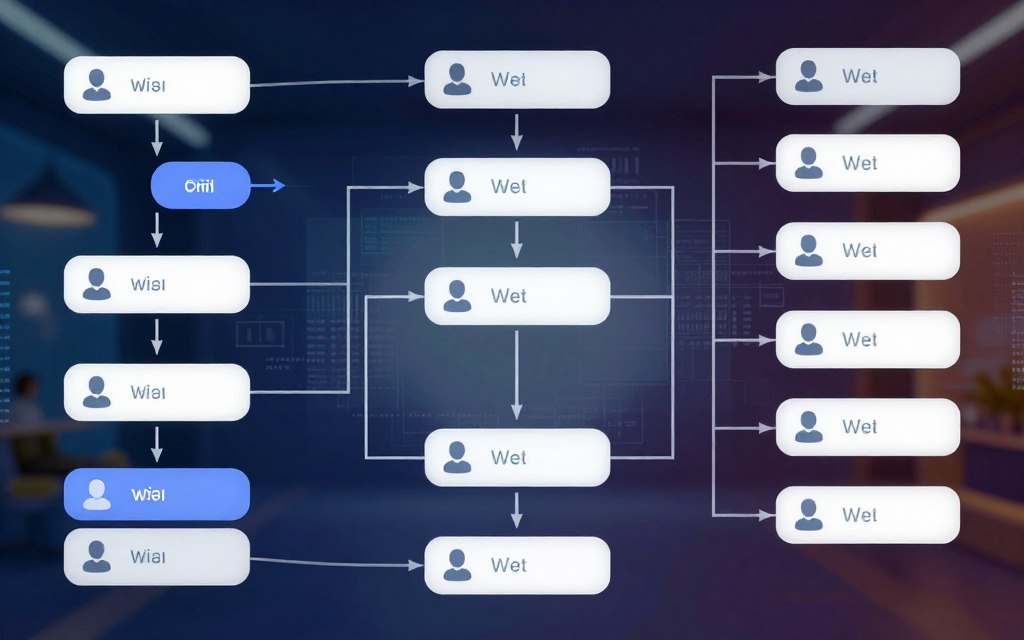
Good flow design keeps the conversation on track and ensures natural responses. It’s the blueprint for your chatbot’s personality and efficiency.
Input Processing and Response Generation
When a user sends a message, the bot must process it first. This involves tasks like converting text to lowercase and removing punctuation. The goal is to understand the user’s intent.
For our rule-based chatbot python script, processing might involve simple keyword spotting. For example, if the input is “hello,” the bot recognises it as a greeting. More advanced processing, like in ChatterBot, uses statistical comparisons to large language corpora.
Once the intent is identified, the bot generates a response. In a rule-based system, this is a pre-written template. The cycle then repeats, maintaining the chatbot conversation flow.
Understanding the cycle of input → processing → response is essential. It applies whether you’re crafting simple rules or training a neural network. If you want to create advanced systems without coding, you can learn how to build your own chatbot from scratch using modern platforms.
With these core concepts in mind, you’re ready to start building. The next sections will show you how to apply these ideas in Python code.
How to Make a Simple Chatbot in Python: Step-by-Step Guide
We’re going to build a basic chatbot for the command line. This guide will show you how to make a simple chatbot code project. Just follow each step to see your chatbot come to life.
Step 1: Creating a New Python File and Importing Modules
First, open your code editor or IDE. Make a new, empty Python file and name it bot.py. This file will hold all your chatbot’s logic.
For this simple bot, we don’t need big libraries. We’ll use Python’s built-in functions. Start by adding the random module. This lets us create varied greetings and responses.
import randomStep 2: Defining Your Chatbot’s Greeting and Basic Structure
Every chatbot needs a unique personality. Give your bot a name and create a welcoming function. This sets the tone for the chat.
First, pick a name for your bot. Then, write a function that prints a personalised greeting. Using the random module makes the bot more lively.
bot_name = "PyBot"

def greet_user():
greetings = ["Hello! I'm", "Hi there! My name is", "Greetings! I am"]
print(random.choice(greetings), bot_name, "How can I help you today?")
Step 3: Building a Simple Rule-Engine for Responses
The brain of your chatbot is a rule-engine. It matches keywords in the user’s input to predefined responses. This is the heart of intent recognition python techniques, simplified here.
Coding the Response Logic
Create a function called generate_response. It will take the user’s input and return a suitable reply.
Inside this function, we’ll write the matching logic. The main idea is to check for certain words in the user’s message.
Using Conditional Statements
We use if-elif-else statements to check for keywords. We convert the user’s input to lowercase using .lower() for case-insensitive matching.
def generate_response(user_input):
user_input = user_input.lower()

if "hello" in user_input or "hi" in user_input:
return "Hello again!"
elif "how are you" in user_input:
return "I'm just a program, but I'm functioning well, thanks!"
elif "weather" in user_input:
return "I'm afraid I can't check the weather yet. Try a web search!"
elif "your name" in user_input:
return f"My name is {bot_name}."
elif "bye" in user_input or "exit" in user_input:
return "Goodbye! It was nice chatting."
else:
default_responses = ["That's interesting.", "Tell me more.", "I see."]
return random.choice(default_responses)
The else block is key. It provides a default response for unmatched queries, keeping the conversation going.
Step 4: Creating the Main Conversation Loop
A chatbot must run continuously, waiting for and responding to user input. This is done with a while True loop. The loop will run until we tell it to stop.
Inside the loop, we call the greeting function once. Then, we use input() to get the user’s message. This message is passed to our response function, and the reply is printed.
def chat():
greet_user()
while True:
user_message = input("You: ")
bot_reply = generate_response(user_message)
print(f"{bot_name}: {bot_reply}")
Step 5: Adding an Exit Command
An infinite loop needs a safe way to end. We’ve already programmed a polite response for “bye” or “exit”. But we also need to break the while loop to exit the program.
Modify the main conversation loop to check for exit conditions. After generating the response, check if it’s the goodbye message. If it is, print it and use break to exit the loop.
def chat():
greet_user()
while True:
user_message = input("You: ")
bot_reply = generate_response(user_message)
print(f"{bot_name}: {bot_reply}")

# Check for exit condition
if bot_reply.startswith("Goodbye"):
break

# This line starts the chatbot when the script is run
if __name__ == "__main__":
chat()
Your simple chatbot code is now ready. Save your bot.py file. Run it from your terminal using python bot.py and start chatting. You’ve successfully built a rule-based chatbot that can recognise basic intents through keyword matching.
Implementing Basic Natural Language Processing (NLP)
A modern chatbot’s strength comes from understanding natural language, thanks to Natural Language Processing (NLP). Unlike rule-based chatbots, NLP lets them handle different ways people speak. This makes chats feel more natural and smart.
What is NLP and Why It Matters
NLP is a part of AI that helps computers get and use human language. For chatbots, it’s key to turn user text into actions or answers.
Without NLP, chatbots can only match exact phrases. But with it, they start to understand intent. For example, “What’s the weather?” and “Is it going to rain?” both ask for weather info. Basic NLP helps your Python script see these connections.
“ChatterBot might download some data and language models associated with the NLTK project.”
This shows how important natural language processing python is. It often uses pre-trained models and data to work well.
Using the NLTK Library for Text Processing
The Natural Language Toolkit (NLTK) is a top Python library for language data. It offers easy access to many resources and tools for text processing. For a smarter NLTK chatbot, it’s essential.
Installing and Configuring NLTK
First, install NLTK with pip in your project’s virtual environment. Open your terminal or command prompt and type:
pip install nltkAfter installing, you need to download NLTK’s required data packages. In your Python script or shell, run:
import nltk
nltk.download('punkt')
nltk.download('wordnet')
nltk.download('omw-eng')
This sets up the needed datasets. The punkt package is for breaking text into words, and wordnet is for word forms.
Tokenisation and Simple Keyword Matching
Tokenisation breaks text into smaller parts, like words or phrases. It’s a key step in text prep.
For example, “I’m really excited to build my chatbot!” gets split into: ['I', "'m", 'really', 'excited', 'to', 'build', 'my', 'chatbot', '!'].
| Processing Step | Description | Common NLTK Function | Example Input → Output |
|---|---|---|---|
| Tokenisation | Splitting text into words, sentences, or other units. | nltk.word_tokenize() |
“Hello world!” → [‘Hello’, ‘world’, ‘!’] |
| Lemmatisation | Reducing a word to its base or dictionary form (lemma). | WordNetLemmatizer().lemmatize() |
“running” → “run”, “better” → “good” |
| Stop Word Removal | Filtering out common words (e.g., ‘the’, ‘is’, ‘in’) that offer little value. | nltk.corpus.stopwords.words('english') |
[“this”, “is”, “a”, “test”] → [“test”] |
Lemmatisation is very useful. It changes words to their base form, so different forms are seen as the same. This makes your chatbot’s keyword matching better.
Making Your Chatbot Smarter with Basic Intent Recognition
With text processed, you can start recognising user intent. The goal is to link a user’s message to a specific action.
A simple way is to use a dictionary with lemmatised keywords and their corresponding intents. Your chatbot then checks the user’s tokens against this dictionary.
To add this to your chatbot, follow these steps:
- Preprocess the user’s input: tokenise and lemmatise each word.
- Define a set of ‘intent keywords’ for each possible chatbot action (e.g., ‘greet’, ‘weather’, ‘goodbye’).
- Check if any lemmatised user tokens match your intent keywords.
- Trigger the appropriate response based on the matched intent.
This makes your chatbot more flexible and understanding. It’s a key step in natural language processing python for chatbots.
Testing and Debugging Your Chatbot
After writing your chatbot’s code, it’s time to test and refine it. This stage turns your script into a live, interactive tool. A thorough approach to testing and debugging is key to making your chatbot work well.
Running Your Chatbot for the First Time
Open your project directory in the terminal or command prompt. Type python bot.py to run your script. If it works, you’ll see a prompt waiting for you to interact.
Start by saying “hello” to see if your bot responds correctly. This first test checks if the basic loop works and if there are no syntax errors.
Common Errors and How to Fix Them
Even with careful coding, mistakes happen. Here are some common problems and how to solve them:
- ModuleNotFoundError: Python can’t find a library you’re trying to use. Check the library name and make sure you installed it correctly using
pip install. - IndentationError: Python needs consistent spacing. Make sure all code blocks use the same number of spaces (usually 4). Your editor’s “format document” feature can fix this for you.
- Logic Flaws in Response Matching: Your bot might not match the right response. Use print statements to see the user’s input and what your bot is comparing it to. This chatbot data cleaning step helps match the exact string you want.
- Infinite Loops: If your bot gets stuck, check your
whileloop’s exit condition. Make sure the command that ends the loop, like “quit”, is detected correctly.
Strategies for Effective Testing
Testing your chatbot needs a solid plan. It’s not just about finding bugs; it also builds resilience and systematic thinking. As one source says,
“Debugging helps build resilience and systematic thinking.”
Think like a quality assurance engineer. Your goal is to test your chatbot’s logic and make sure it’s polite and helpful in different situations.
Testing Different User Inputs
Don’t just test the exact phrases you coded. Try synonyms, typos, uppercase letters, and extra spaces. For example, if your bot responds to “hello”, also try “Hello!”, “HELLO”, or ” hi “.
Test edge cases like very long inputs, empty inputs (just pressing Enter), or inputs with numbers and symbols. This process is a form of input validation and chatbot data cleaning, preparing your bot for real-world conversations.
Checking the Conversation Flow
Evaluate how natural the dialogue feels. Does the bot’s greeting set clear expectations? If you ask a follow-up question, does the context make sense, or does the bot reset awkwardly?
For a rule-based bot, map out important user journeys. Test sequences like: Greeting -> Asking for help -> Receiving help -> Saying thank you -> Exiting. Make sure the bot stays coherent and its exit command works at any time.
Keep a record of any unexpected responses. This log will help you improve your chatbot by adding new rules or adjusting existing ones to cover more scenarios.
Enhancing Your Chatbot’s Functionality
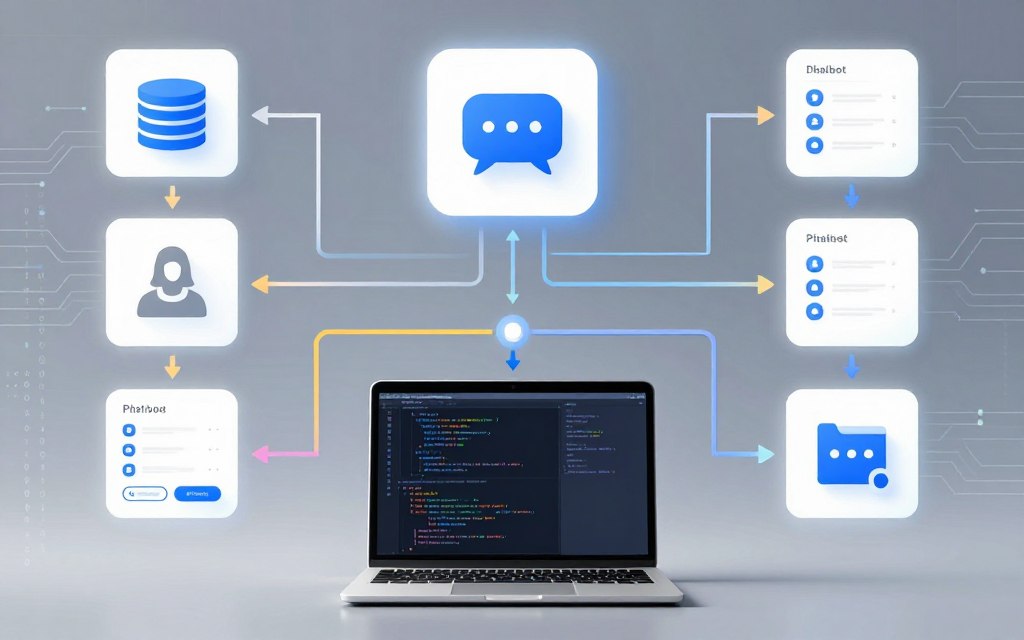
When you add advanced features to your Python chatbot, it becomes more than just a script. It gains personality and becomes useful. Adding memory, connecting to live data, and improving its look transforms it into a powerful tool. These changes also open up many chatbot project ideas, from educational tools to personal assistants.
Adding Memory with Data Structures
A chatbot that forgets everything after each message is limited. You can give it short-term memory using Python’s data structures. For example, a dictionary can store a user’s name and preferences across a conversation.
Imagine your chatbot asks for a name. You can store the response in a dictionary like user_data = {'name': 'Alice'}. Later, it can recall this with a personalised greeting. Lists are useful for remembering the conversation history. This makes interactions feel continuous and intelligent.
Choosing the right structure depends on what you need to memorise. The table below compares common options:
| Data Structure | Best For Storing | Example Use in Chatbot |
|---|---|---|
| Dictionary | Key-value pairs (e.g., user details) | user_profile = {'name': 'John', 'mood': 'happy'} |
| List | Ordered sequences (e.g., message history) | conversation_log = ['Hello', 'Hi there!', 'How are you?'] |
| Set | Unique items (e.g., topics discussed) | covered_topics = {'weather', 'news', 'sports'} |
Integrating External APIs for Dynamic Information
To go beyond pre-written responses, connect your chatbot to the internet. APIs let your script fetch real-time data. This is the heart of chatbot API integration.
You might add a function to get the current weather. Using the requests library, your chatbot can call a weather service’s API and read the JSON response. It can then tell the user if they need an umbrella. This makes your bot a source of live information.
You can build an industry-specific chatbot by training it with relevant data. Also, the chatbot will remember user responses…
Start with free APIs, like those for jokes, news headlines, or currency exchange rates. Each successful integration adds a new layer of utility to your project.
Improving the User Interface
How your chatbot communicates is as important as what it says. A plain text terminal can be enhanced visually and interactively.
Adding Colours and Formatting
You can use ANSI escape codes to colour terminal text. This helps distinguish user input from bot responses. For example, printing \033[92m before text makes it bright green. Simple formatting like bold text or separators makes the conversation easier to follow.
It is a low-effort upgrade with a high impact on user experience. Your chatbot immediately looks more polished and engaging.
Creating a Simple GUI (Optional)
For a more application-like feel, consider a basic Graphical User Interface. Python’s tkinter library is built-in and suitable for beginners. You can create a window with a text box for input and a larger area to display the chat history.
This moves the interaction away from the command line. It is a fantastic next step if you want to share your chatbot with non-technical users. While optional, it provides valuable experience in event-driven programming.
With these enhancements, your basic chatbot framework can evolve into specialised projects. Consider these creative chatbot project ideas for beginners:
- Study Buddy Chatbot: Integrates a quiz API and uses a list to track revision topics.
- Wellness Bot: Remembers user mood via a dictionary and suggests activities using a health API.
- Museum Guide Chatbot: Uses API integration for exhibit details and a GUI for displaying images.
Experimenting with memory, APIs, and interfaces will give you the skills to bring these ideas and many others to life.
Deploying Your Chatbot for Real-World Use
Once your chatbot works on your machine, the real challenge starts. You need to make it available to others. This means turning your code into a useful tool. It moves from a personal project to something that helps others.
This phase includes packaging your script, choosing a host, and planning for the future. A guide on creating a chatbot with ChatterBot shows how Python makes this easy. With a few steps, you can create a strong application.
Packaging Your Python Script
Your chatbot is probably a .py file. To share it, you can turn it into a standalone executable. Tools like PyInstaller or cx_Freeze help do this. They package your script and its dependencies into one file.
First, install the tool with pip. Then, run a command to create an executable in a dist folder. This is great for sharing with a small group. But remember, the executable works only on specific platforms.
Options for Hosting and Sharing
For a chatbot always available, hosting on a server is key. You have many options, each with its own complexity and cost.
- Local Server: Run the script on a computer in your local network. This works for internal tools but isn’t accessible outside.
- Cloud Platforms: These services make your chatbot public. Heroku, PythonAnywhere, and Google Cloud Run are good for Python apps. They often have free tiers for starting out.
- Virtual Private Server (VPS): Services like DigitalOcean or AWS EC2 give you a virtual machine. This offers full control but requires more setup and security knowledge.
The table below compares common hosting options for a beginner-friendly deploy python chatbot project.
| Hosting Type | Ease of Setup | Cost (Entry-Level) | Best For |
|---|---|---|---|
| Cloud Platform (e.g., Heroku) | Very Easy | Free tier available | Learning, prototypes, low-traffic bots |
| Virtual Private Server (VPS) | Moderate to Hard | Low monthly fee | More control, custom configurations |
| Local Machine | Easy | Free | Internal use, development testing |
Considerations for Scalability and Maintenance
Think about chatbot scalability and upkeep early on. Scalability means your bot can handle more users without crashing.
If you expect lots of users, your script might struggle. Use a web framework like Flask or a cloud service that can scale automatically. Planning for chatbot scalability makes growth easier.
Maintenance is ongoing. Your chatbot will need updates. Plan for:
- Updating Logic and Responses: User interactions will show what your bot doesn’t know. You’ll need to update its rules or training data regularly.
- Monitoring Performance: Use logging to track errors and user queries. This data helps improve your bot.
- Managing Dependencies: Keep your chatbot’s libraries up to date for security and compatibility.
Deployment is just the beginning. It shifts your focus to making sure your chatbot is reliable and meets user needs.
Conclusion
This guide has shown you how to make a simple chatbot in Python. You’ve set up your environment and written the main code. You’ve also used NLTK for basic natural language processing.
Your chatbot is just the beginning. You can make it better. To get better responses, you could collect more data. You could also use more advanced libraries or connect to external APIs.
Remember, chatbots affect people. Designers should think about privacy, transparency, and social impact. It’s important to create tools that are helpful and respectful.
Now, use your skills to make digital experiences better. Keep learning, trying new things, and improving your projects. Always think about their impact on the world.
FAQ
What is a chatbot and what are its common applications?
A chatbot is a computer program that talks like a human. It’s used in many ways, like helping with customer service, teaching, and as a personal assistant. The chatbot market is growing fast because it’s useful in many fields.
Why is Python considered an excellent language for chatbot development?
Python is great for making chatbots because it’s easy to read and understand. It has many libraries like ChatterBot and NLTK that make it easier to work with words. Plus, it has a big community of developers who help each other out.
What foundational knowledge and tools are required to start building a chatbot in Python?
To start, you need to know the basics of Python like variables and loops. You’ll also need a Python interpreter and a code editor or IDE like Thonny. This will help you write and run your chatbot code.
How do I correctly set up a virtual environment for my Python chatbot project?
Setting up a virtual environment helps manage your project’s needs. Use `python -m venv chatbot_env` to create one. Then, activate it and install libraries like `chatterbot` and `chatterbot_corpus` without affecting other projects.
What is the difference between a rule-based chatbot and an AI-powered chatbot?
A rule-based chatbot follows set rules and keywords to answer. An AI-powered chatbot learns from data and understands more complex questions. This makes AI chatbots seem smarter and more flexible.
How can I implement basic Natural Language Processing to improve my chatbot’s understanding?
Use NLTK to make your chatbot smarter. Break down text into words and simplify them. This helps your chatbot understand more than just exact words, making it seem more intelligent.
What are some effective strategies for testing and debugging my Python chatbot?
Test your chatbot with different questions and phrases. Look out for common mistakes like import errors and logical problems. Test all parts of your chatbot and keep improving it until it works well.
How can I add advanced features like memory or external data to my chatbot?
To add memory, use dictionaries to store user info. For dynamic data, use APIs like `requests` to get real-time info. You can also make your chatbot look better by adding colours or a graphical interface with Tkinter.
What are the key considerations for deploying my chatbot for real-world use?
When you’re ready to use your chatbot, make it easy to share by turning it into an executable file. You can host it on a local server or in the cloud. Make sure it can handle more users and keep it updated.


 By
By